Followers

Powered by Blogger.
Wednesday, December 7, 2011

Disable User Account Control in Windows 8

Windows User Account Control ( UAC ) is a very important feature for system control-levels. Read more if you do not like the UAC warning.


Disable User Account Control in Windows 8

Windows User Account Control (UAC) prevents any harmful application from infecting your pc by warning you prior to making any changes to the system. One may feel this feature annoying if one installs only trusted softwares and this feature keeps warning. Follow the following steps if you are the one.
1. In the Metro Start Menu click on the lower left corner. The Start menu pops up. Click on Search.
 2. From the Apps list that appears, click on Control Panel.
 3. In the Control Panel , click on More Settings. This will take you to Control Panel window.
 4. Click on User Accounts.
 5. Click Change User Account Control settings under the Make changes to your user account heading.
 6. Slide the bar to Never notify and click Ok.
 Windows User Account Control ( UAC ) has raised the bar of user security on Windows and the user is less likely to be a victim of malicious programs. Therefore do not disable it unless you are really annoyed by the warnings.

How to disable firewall in Windows 8

Windows firewall is an essential tool for protection of your PC but if you have third party firewall, disabling it might save for you some computing resource.


Disable firewall Windows 8

A firewall protects your computer against hacking or any virus infection which might take place through a network or the internet. Most of us deploy complete anti virus solutions which include internet and network protection within and manage their own firewalls. In such a case, to save some computing resource, the Windows’ firewall could be disabled. Follow the instructions below if you want to disable it on your Windows 8.
1. In the Metro Start Menu click on the lower left corner. The Start menu pops up. Click on Search.
 2. From the Apps list that appears, click on Control Panel.
 3. In the Control Panel , click on More Settings. This will take you to Control Panel window.
 4. Click on Windows Firewall.
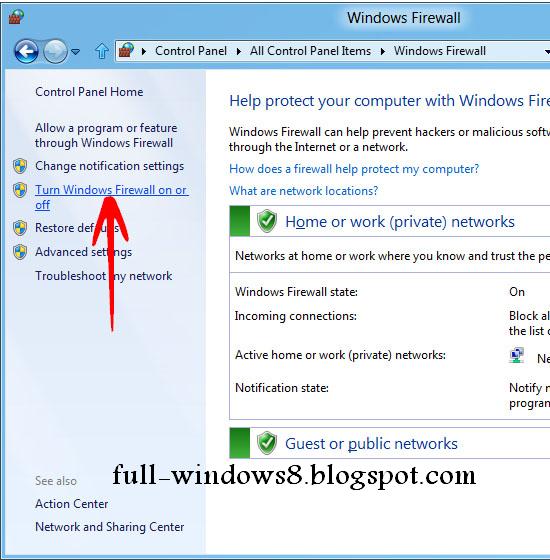
 5. In the left pane, click on Turn Windows Firewall on or off.
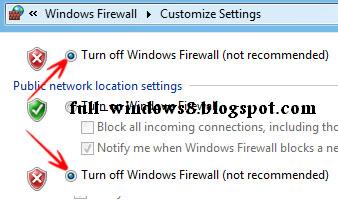
 6. Now select Turn off Windows Firewall for both home and public network settings. Click Ok when done.

 Disabling Windows firewall is not recommended by the Windows but in case of a trusted third party firewall (anti virus solution), disabling it may surely save you some resource.

How to enable microphone in Windows 8


Hangout on Google+, Video Chat on facebook or call on Skype, you need to enable your microphone to be heard. Learn how to enable your microphone.


Enable microphone in Windows 8

To use your microphone for voice chat or recording etc, you need to enable your microphone. In Windows 8, the microphone is enabled by default. You need to make sure that your audio driver is installed correctly and the microphone is listed as a recording device. If you by any case need to enable your micrphone manually, follow the steps mentioned below;
1. In the Metro Start Menu, click on the lower left corner. The Start menu pops up. Click on Search.
 2. From the Apps list that appears, click on Control Panel.
 3. In the Control Panel , click on More Settings. This will take you to Control Panel window.
 4. Click on Sound.
 5. Open the Recording tab, select Microphone from the list and click onProperties button.
 6. In Device usage option, select Use this device (enable) from the drop down list and click Ok.
 Windows 8 discovers your microphone as you plug it in but some applications may alter the microphone settings which can be manually undone.
Tuesday, December 6, 2011

How to install any language pack for Windows 8 Developer Preview


To change languages, just download and install a language pack (All language packs). and with few clicks later, and Windows will be speaking your language.

tis Tutorial wil show u how you can translate your  Windows 8 Developer Preview language to any other one you want.For that i will give you an exemple with arabic language ..but they way its the same for all other languages.

1-first we need to download this application 


2-click open and choose your language pack 
3-wait tell installing finished and then restart your computer.

 HOW to enable your language pack in windows 8

1-open control panet-->all control Panel Items-->Languages

2- and choose your language (for exemle here i choosed arabic)

 3-go back to Region and Lnaguges and clikc on copy setting

 4- you will see anw window then check 
                        _welcom screen and system accounts
                        _New user accounts
5- click OK and restart your system

 The result


How to enable cookies in Windows 8

Get the most from your online experience by enabling cookies. Learn how to enable them in Windows 8.

Enable cookies in Windows 8

Cookies are used to personalise your web experience by storing information in files called cookies. Many popular websites like www.google.com, www.amazon.com and www.ebay.com etc, use cookies to keep track of your activities and personalised settings. To enable cookies in Windows 8, follow the instructions mentioned below;
1. In the Metro Start Menu, click on the lower left corner. The Start menu pops up. Click on Search.
 2. From the Apps list that appears, click on Control Panel.
 3. In the Control Panel , click on More Settings. This will take you to Control Panel window
 4. Click on Internet Options.
 5. Select Privacy tab and click on Advanced button.
 6. Check Override automatic cookie handling and select Accept option for both. Check Always allow session cookies. Click Ok when done.

About Me